September 18, 2026·8 min read
Landmark Structure: How Screen Readers Navigate
Screen reader users jump between page landmarks instead of reading top to bottom. Here's what breaks that map, and how to fix it.
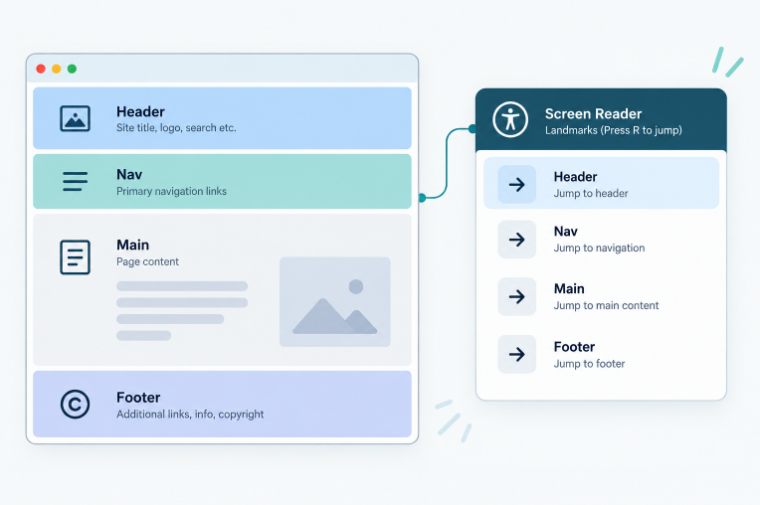
Screen reader users don't read a page top to bottom like scrolling through a document, they jump between named regions, header, navigation, main content, footer, the same way a sighted user's eye jumps straight to a menu bar without reading everything above it. Those regions are called landmarks, and without them, a screen reader user is stuck reading through everything in order, with no way to skip straight to what they actually came for.
Key Takeaways
- Landmarks are semantic HTML regions,
<header>,<nav>,<main>,<footer>,<aside>, that give a page an invisible map. A screen reader can jump straight between them. - Without landmarks, a screen reader user has to listen through everything in order, the same repeated navigation menu on every page, every time, with no way to skip ahead.
- A page should have exactly one
<main>. More than one confuses landmark navigation and fails an automated scan outright. - Multiple
<nav>elements need a label to tell them apart. Two navigation regions both announced simply as "navigation" give a user no way to know which is which. - Wrapping everything in generic
<div>tags instead of semantic elements removes the map entirely. A<div>has no role, so a screen reader has nothing to jump to.
Exact Error Messages and How to Fix Them
If a scanner sent you here, these are the messages axe-core, the open-source engine behind most automated accessibility checkers, reports for landmark problems. The wording below matches axe-core 4.11.
"Document does not have a main landmark"
This is rule landmark-one-main ("Document should have one main landmark"). The page has no <main> element and no role="main". Wrap the page's primary content in a single <main>, and keep the site header and footer outside it.
"All page content should be contained by landmarks"
This is rule region; on the failing element it reads "Some page content is not contained by landmarks". Text, images, or controls sit outside every <header>, <nav>, <main>, and <footer>. Move each one into the landmark it belongs to, most often <main>.
"Document should not have more than one main landmark"
This is rule landmark-no-duplicate-main. Two elements on the page are acting as <main>, whether by tag or by role="main". Keep the one that holds the page's real content and change the other to a <div> or a labeled <section>.
"Landmarks should have a unique role or role/label/title (i.e. accessible name) combination"
This is rule landmark-unique. Two landmarks of the same type, usually two <nav> elements, have no name or the same name. Give each its own aria-label, such as aria-label="Main" and aria-label="Footer".
"Main landmark should not be contained in another landmark"
This is rule landmark-main-is-top-level. A <main> is nested inside a <header>, <nav>, <aside>, or <footer>. Move it out so it sits at the top level of the page.
Which of these Axeazy fixes automatically, and which wait for your approval, is covered under "What Axeazy Can Fix Here" below. Landmarks are one of two ways screen reader users move around a page; the other is headings, covered in heading structure mistakes that break accessibility.
What Landmarks Actually Do
Landmarks are semantic HTML elements that mark out the major regions of a page: <header> for the top area, <nav> for navigation menus, <main> for the actual content someone came to read, <footer> for what's at the bottom, <aside> for tangentially related content like a sidebar.
Each one carries an implied role a screen reader recognizes automatically. That's what makes them landmarks rather than just containers: a screen reader can present a list of every landmark on the page and let a user jump straight to any of them, the same shortcut a sighted user gets for free just by glancing at a page's visual layout.
Screen reader shortcuts vary by software but the idea is the same everywhere: NVDA users cycle through landmarks with the D key, JAWS users with R, VoiceOver users through the rotor. All three let someone skip straight past a repeated header and navigation menu to the actual content, the same menu they've already heard on every other page of the site.
Why This Matters More Than It Looks
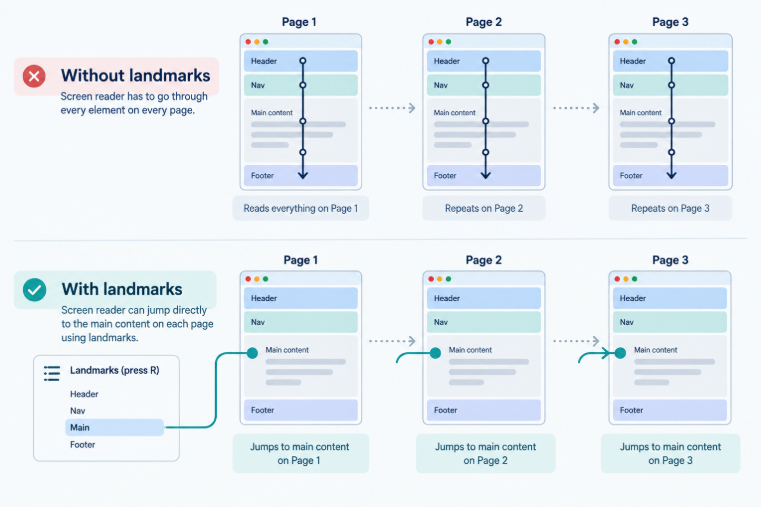
Imagine listening to every website read to you in a single unbroken stream, logo, full navigation menu, any announcement banners, then finally the actual page content, on every single page, with no way to skip ahead. That's the experience without landmarks. Someone visiting ten product pages on an online store hears the full header and navigation ten separate times before reaching what they're actually trying to compare.
Landmarks turn that into a real map instead of a straight line. This is WCAG 1.3.1, Info and Relationships, at Level A: page structure and relationships need to be programmatically determinable, not just visually obvious. It also connects to 2.4.1, Bypass Blocks, the requirement that users have some way to skip repeated content, landmarks are one of the standard ways to satisfy that.
Common Mistakes That Break the Map
Wrapping everything in <div> instead of semantic elements. A <div> carries no role at all. Visually it can look identical to a proper <header> or <nav>, but a screen reader has nothing to jump to, the landmark simply doesn't exist.
<!-- Fails: visually a header, invisible to landmark navigation -->
<div class="header">
  <div class="logo">Site Name</div>
</div>

<!-- Passes: a real landmark a screen reader can jump to -->
<header>
  <a href="/" class="logo">Site Name</a>
</header>
More than one <main> on a page. The HTML specification allows exactly one. A second one doesn't just bend the rules, it actively confuses landmark navigation and fails an automated scan.
Multiple <nav> elements with no label. If a page has a primary navigation menu and a separate footer navigation, a screen reader announces both simply as "navigation," with no way to tell them apart, unless each one carries a distinguishing label.
<!-- Fails: both announce as identical, unlabeled "navigation" -->
<nav>...</nav>
<nav>...</nav>

<!-- Passes: each one is announced distinctly -->
<nav aria-label="Main">...</nav>
<nav aria-label="Footer">...</nav>
Nesting <header> or <footer> inside <article> or <section>. They lose their landmark role entirely when nested this way, they're only recognized as page-level landmarks at the top level of the document, not inside another content region.
Using <section> without a label. A <section> only becomes a real landmark when it's given an accessible name via aria-label or aria-labelledby. An unlabeled <section> doesn't register as a landmark at all.
How to Check Your Own Site
You don't need a screen reader installed to catch most of this.
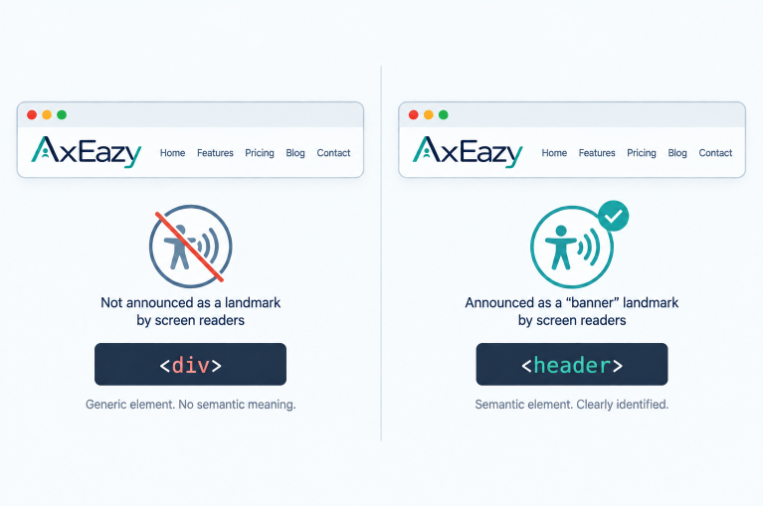
- View the page source or open DevTools' Elements panel. Search for
<div class="header">or similar, generic containers standing in for real landmark elements are the single most common failure. - Count your
<main>elements. There should be exactly one per page. - Check every
<nav>for a label, if there's more than one on the page. - Or run a scan instead of checking element by element. Axeazy's free scan checks a page's full landmark structure in about 60 seconds, alongside the other fix categories it covers.
What Axeazy Can Fix Here
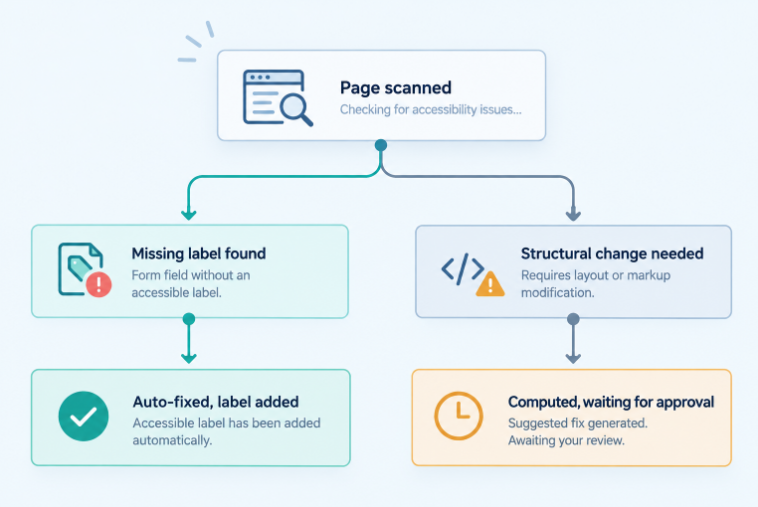
This category splits cleanly into two kinds of change, and only one of them can happen without asking first.
Adding a missing label is a pure addition, nothing moves, nothing gets renamed, so Axeazy fixes it automatically: an unlabeled orphan content region gets a label built from its id, class, or tag name, and duplicate landmarks missing a distinguishing label get one added. Both are real, working automatic fixes.
Restructuring an existing landmark, changing a duplicate <header> to a plain <div>, moving a nested <main> out to the top level, fixing a <nav> that's buried where it shouldn't be, is a visible structural change, not a quiet addition. Axeazy computes the correct fix for these, but nothing gets written until you or your developer explicitly approve it in the dashboard first. That's a deliberate line: adding an invisible label needs no sign-off, changing your page's actual structure does.
FAQ
How many <main> elements should a page have?
Exactly one. The HTML specification only allows one, and having more than one breaks landmark navigation for screen reader users and fails an automated accessibility scan.
Do I need to label every <nav> on my page?
Only if there's more than one. A single navigation region doesn't need a label, a screen reader announces it as "navigation" and that's unambiguous. Once there are two or more, each needs a distinguishing label like aria-label="Main" or aria-label="Footer" so users can tell them apart.
Does using <section> automatically create a landmark?
No. A <section> only becomes a landmark once it has an accessible name, given through aria-label or aria-labelledby. Without one, it's just a generic container, no different from a <div> for landmark purposes.
Can I nest a <header> inside an <article>?
You can, but it loses its page-level landmark role when nested that way. A <header> or <footer> is only recognized as a top-level landmark when it sits directly at the page level, not inside another content region.
Does fixing landmarks alone make my site easy to navigate?
No single fix covers everything. Landmarks solve one specific problem, letting users skip between major regions instead of reading through everything in order. A page can still have other navigation issues, broken heading structure or a confusing tab order, that need their own separate check.
Sources
Want this in your inbox?
The ADA Alert. Weekly intelligence.
Every Tuesday: accessibility news, common WCAG issues, and code-level fixes. Free. Unsubscribe in one click.
Scope of every report we ship: SCOPE LIMITATION: This report documents violations identified by automated WCAG 2.2 AA scanning using axe-core v4.11.0. Automated tools cannot test every WCAG criterion; many criteria require manual review. This report does not constitute legal advice, guarantee ADA compliance, or protect against legal action. ADA compliance is a legal determination made by courts. For full WCAG conformance assessment, engage an IAAP-certified accessibility professional.