September 29, 2026·8 min read
Heading Structure Mistakes That Break Accessibility
Most screen reader users navigate by headings first. Five heading mistakes that break the outline, and what SEO actually does and doesn't care about.
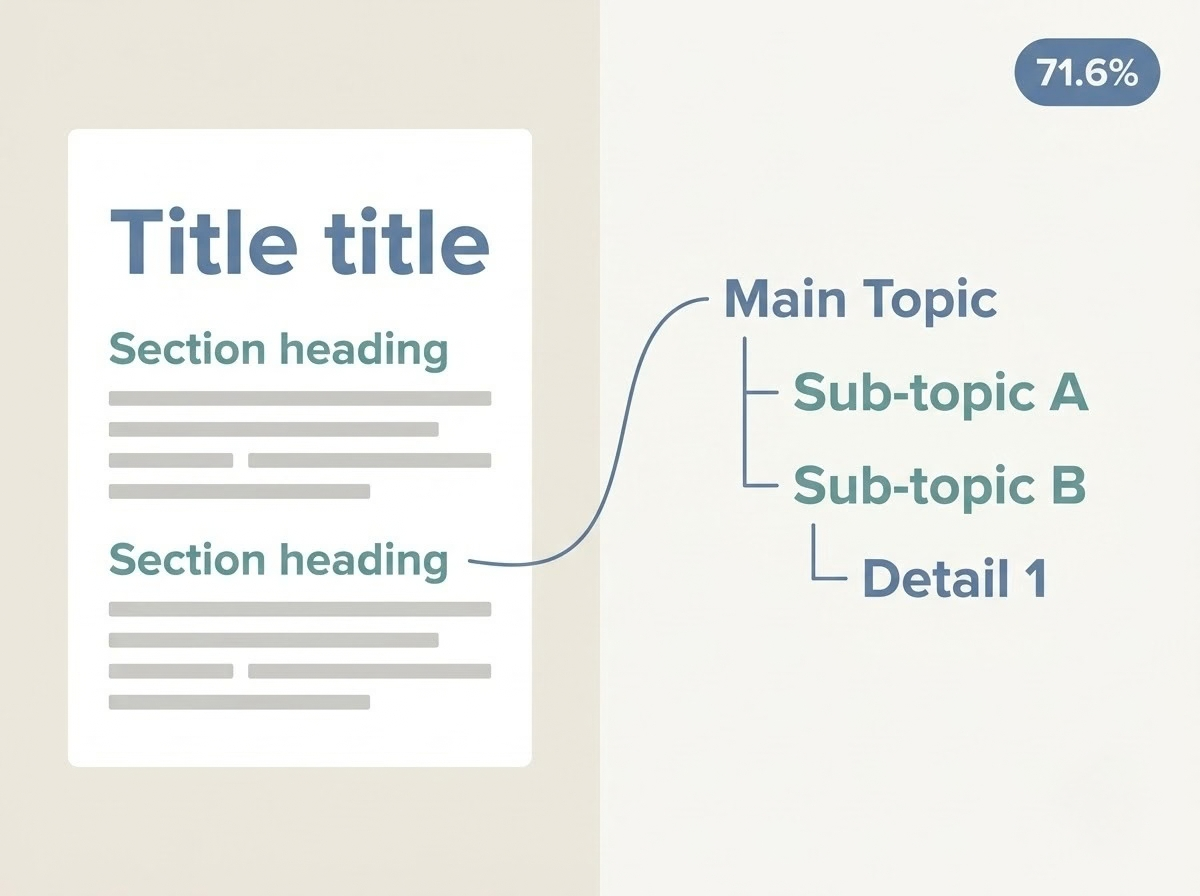
Headings are how most screen reader users find things on a page. In WebAIM's 2024 screen reader survey, 71.6% said they first navigate a long page by its headings, so a broken heading outline breaks the page's main navigation system. Five mistakes cause most of the damage: fake headings, skipped levels, headings chosen for their size, empty headings, and a missing or confused H1. The SEO connection is narrower than most tools claim, and this post covers exactly what it is.
Key Takeaways
- Screen reader users use headings like a table of contents. 71.6% first navigate a long page by headings, and 88.8% find heading levels very or somewhat useful (WebAIM Screen Reader User Survey #10).
- A heading is a real HTML element, not a look. Bold, larger text in a paragraph is invisible to a screen reader as a heading, no matter how it looks.
- Heading mistakes are extremely common. In WebAIM's 2026 analysis of the top million home pages, 41.8% had at least one skipped heading level, and 7.5% had no headings at all.
- Google doesn't rank by heading order. Its search advocates have said a page ranks fine with no H1 or several, and that heading order isn't a ranking factor. What Google reads is what a heading says, not which level it is.
- Axeazy fixes some of this automatically and some only with your approval. A missing H1 or an empty heading is a pure addition. Reordering existing headings changes your page structure, so it waits for a sign-off. A fake heading made of styled text needs a person.
What Headings Do for a Screen Reader User
Sighted visitors scan a page by looking. Larger, bolder text tells them where a section starts. A screen reader user gets the same information only if the page marks it up as a heading. Then they can pull up a list of every heading on the page, or jump straight to the next one with a single key, the way a sighted reader's eye jumps down a page.
That's why headings sit at the center of this whole category of accessibility work. The heading levels, H1 through H6, also communicate hierarchy: an H2 belongs under the H1 above it, and an H3 belongs under the H2 above it. When that outline is right, a user can tell what's a main section and what's a subsection without reading anything.
Five Heading Mistakes That Break the Outline
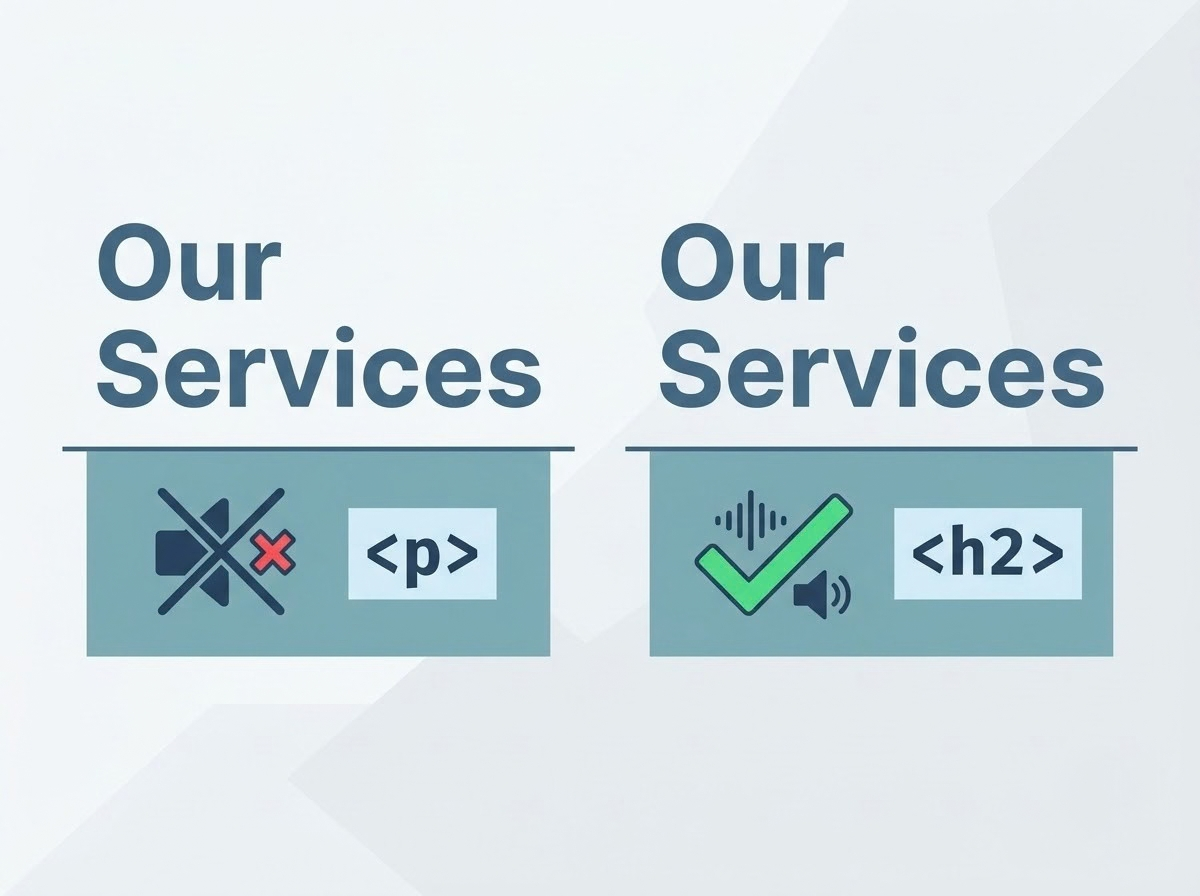
1. Bold text or a styled paragraph pretending to be a heading
This is the most common failure and the hardest to spot by eye, because it looks exactly right.
<!-- Fails: looks like a heading, announces as plain text -->
<p style="font-size: 24px; font-weight: bold;">Our Services</p>

<!-- Passes: a real heading, styled with CSS -->
<h2 class="section-title">Our Services</h2>
WCAG 1.3.1, Info and Relationships, exists for exactly this: structure that's obvious visually has to be available to assistive technology too, not only through styling.
2. Skipping levels
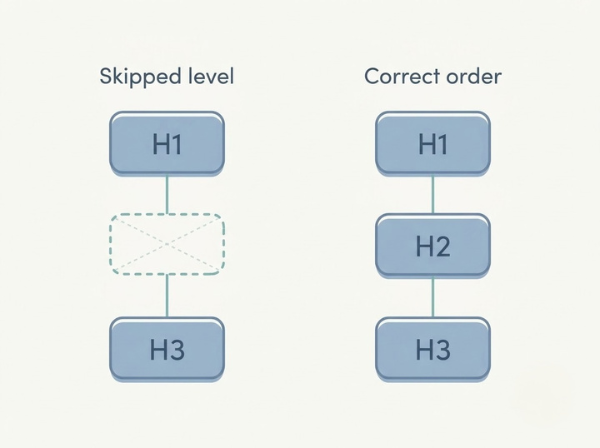
<!-- Fails: jumps from H1 straight to H3 -->
<h1>Maple Street Bakery</h1>
<h3>Today's Specials</h3>

<!-- Passes: no level skipped -->
<h1>Maple Street Bakery</h1>
<h2>Today's Specials</h2>
A skipped level leaves a user wondering whether they missed a section. An H1 followed by an H3 suggests an H2 exists somewhere, and it doesn't.
3. Choosing a level for its size
Someone picks an H4 because an H2 looks too large. The outline breaks to fix a visual problem. The fix is to keep the correct level and change its appearance with CSS.
<h2 class="small-heading">Opening Hours</h2>
.small-heading { font-size: 1.1rem; }
4. Empty headings
<!-- Fails: announced as a heading with nothing in it -->
<h2></h2>
Empty headings usually come from a template or page builder leaving an element behind after its text was deleted. A screen reader announces a heading, and the user hears nothing.
5. No H1, or several competing ones
Every page should have one clear H1 that says what the page is about, because screen readers traditionally treat it as the page's main identifier. This is best practice for accessibility, not a hard WCAG failure, and a page with more than one H1 isn't automatically broken. It's worth fixing because it muddies the outline, especially when a template repeats an H1 in a logo or banner.
How Common These Mistakes Are
WebAIM's annual analysis of the top one million home pages, run in February 2026, shows how widespread this is.
| Heading problem | Share of home pages |
|---|---|
| At least one skipped heading level | 41.8% |
| More than one H1 | 18.1% |
| No headings at all | 7.5% |
These numbers describe large, professionally built sites. A small business site built on a theme or page builder is at least as likely to have the same problems.
What SEO Actually Cares About
This is where a lot of accessibility content overstates its case, so it's worth being precise.
Google has said repeatedly that heading order isn't a ranking factor. Its search advocates have stated that a page can rank fine with no H1 or with five, and that the semantic order of H1, H2, H3 is helpful for accessibility but doesn't materially affect ranking. So a skipped heading level doesn't cost you rankings.
What Google does read is what a heading says. A heading like "Opening hours and location" tells a search engine what the section below it is about, the same way it tells a person. That's the real overlap between accessibility and SEO here: descriptive headings that name their section serve both audiences.
So fix your heading structure for the accessibility reason, which is real and measurable. Treat any SEO benefit as a side effect of writing clear, descriptive headings, not as the reason to do it. Structure that's easy for people to skim is also plausibly easier for automated systems to parse, but no one has confirmed that as a ranking effect, and it shouldn't be promised as one.
How to Check Your Own Headings
- View the outline with a screen reader. In NVDA, press
Insert+F7and choose the headings list, or pressHto jump heading to heading. In VoiceOver, open the rotor withVO+Uand choose Headings. You'll hear the outline exactly as a user does. - Look at the page source. Search for
<hto see every heading and its level, and check whether anything that looks like a heading is actually a<p>or<div>. - Read the outline top to bottom. Does it make sense without the page around it? Are levels in order? Is anything empty?
- Or run a scan. Axeazy's free scan checks a page's heading structure in about 60 seconds, alongside the other fix categories it covers. Two related structure checks are covered in the table header guide and the landmark guide.
What Axeazy Can Help Here
Heading fixes split into three groups, based on how much they change your page.
| Rule | What it checks | Fix path |
|---|---|---|
page-has-heading-one |
The page has no H1 | Fixed automatically, a pure addition, best-effort |
empty-heading |
A heading element has no content | Fixed automatically, a pure addition, best-effort |
heading-order |
Heading levels skip or run out of order | Computed, but waits for your approval |
p-as-heading |
Styled text acting as a heading | Manual review |
Adding a missing H1 or dealing with an empty heading doesn't move or rename anything, so it's written without asking first. Reordering existing headings changes how your page is structured, so Axeazy works out the fix but writes nothing until you or your developer approve it. A paragraph styled to look like a heading needs a person, because only someone who knows the page can say what the text is meant to be.
Three of these are best-practice checks in axe-core, not formal WCAG failures. The fake-heading problem is the closest to a real WCAG 1.3.1 issue.
How the fix reaches your site depends on your platform. GitHub-connected React and Next.js sites get a real pull request. Shopify stores get the scan results and a guided checklist rather than an automatic change to theme templates. On WordPress, heading fixes aren't one of the free plugin's three instant fixes, so they currently follow the checklist path too. See the full fix-category breakdown.
FAQ
Should a page have only one H1?
Aim for one. A single H1 that names the page's topic gives screen reader users a clear starting point. Multiple H1s aren't a WCAG failure and Google doesn't penalize them, but a single clear one keeps the outline easy to follow.
Does skipping heading levels hurt SEO?
Google has said heading order isn't a ranking factor, so skipped levels don't cost you rankings. The harm is to screen reader users, who rely on the levels to understand the outline.
Can I use an H4 because it looks the right size?
Keep the correct level and change the size with CSS instead. Choosing a heading level for its default appearance breaks the outline to solve a visual problem.
Are heading problems cited in ADA demand letters?
Heading structure isn't among the handful of categories most often cited in real demand letters, which lean toward alt text, skip navigation, language attributes, form labels, and link or button names. It's still a real barrier for the people who navigate by headings, and worth fixing on its own merits.
Will fixing my headings make my site accessible?
No single fix does that. Headings are one important piece of how a person finds their way around a page, and a page can have a clean outline and still have other issues, like missing form labels or an unreachable button, that need their own checks.
Sources
- WebAIM: Screen Reader User Survey #10 results
- WebAIM: The WebAIM Million, 2026 report on top home pages
- W3C: Understanding SC 1.3.1, Info and Relationships
- W3C: Understanding SC 2.4.6, Headings and Labels
- Search Engine Journal: Google on H1 headings and SEO
- Stan Ventures: Google's clarification on heading order and SEO
Want this in your inbox?
The ADA Alert. Weekly intelligence.
Every Tuesday: accessibility news, common WCAG issues, and code-level fixes. Free. Unsubscribe in one click.
Scope of every report we ship: SCOPE LIMITATION: This report documents violations identified by automated WCAG 2.2 AA scanning using axe-core v4.11.0. Automated tools identify approximately 30 to 40% of all WCAG criteria. This report does not constitute legal advice, guarantee ADA compliance, or protect against legal action. ADA compliance is a legal determination made by courts. For full WCAG conformance assessment, engage an IAAP-certified accessibility professional.